Categories

Image Tools113 toolsPDF Tools27 toolsText Tools27 toolsDeveloper Tools51 toolsCalculators69 toolsWeb & SEO Tools29 toolsBusiness Tools124 toolsDate & Time12 toolsAudio & Video27 toolsGames29 toolsProductivity33 toolsSecurity Tools12 tools

More

All tools Tool Packs API & MCP About Us Contact Us Request a Tool Blog Favorites Sign in
Text Tools

How to Use the Word Counter

2026-11-135 min readBy Apex Tool Station Team

How to use the Word Counter — step-by-step guide

Count words, characters, sentences, paragraphs and reading time as you type.

100% free No signup Works in your browser

Open the Word Counter tool

1. What is the Word Counter?

A fast, accurate word counter for essays, blog posts, assignments, social captions and SEO content. It updates live as you type and shows words, characters with and without spaces, sentences, paragraphs, estimated reading and speaking time, and your most used keywords.

Your text is saved automatically on this device so you will not lose it if you close the tab.

Count words, characters, sentences, paragraphs and reading time as you type. It offers live word and character count, reading and speaking time, keyword density list and autosave on your device.

2. How to use the Word Counter

Here is the whole process, step by step. It takes less than a minute from opening the tool to seeing your result.

  1. 1Type or paste your text into the box.
  2. 2Read the live counts at the top.
  3. 3Check top keywords to avoid repetition.

Your result updates as you type — there is nothing to press and nothing to wait for.

Everything runs in your browser — your files and text never leave your device.
3. What you can do with it

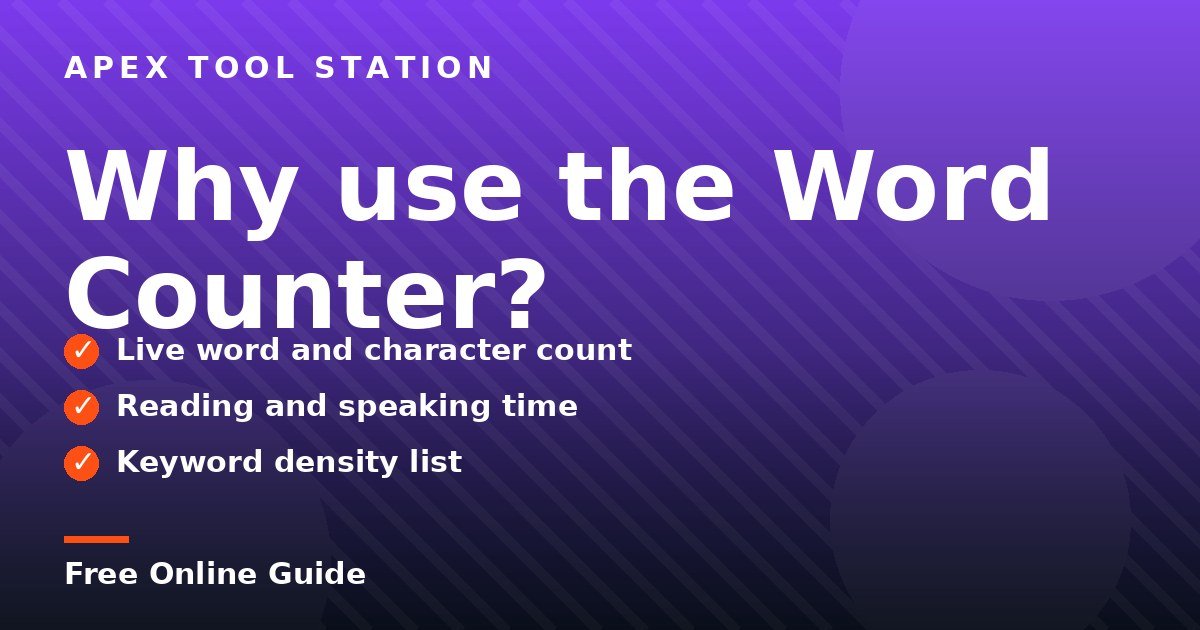
  • Live word and character count — the numbers update as you type.
  • Reading and speaking time — estimated from your word count and shown with your results.
  • Keyword density list — the tool lists your most used words, so you can spot words you repeat too often.
  • Autosave on your device — your text is stored in your browser, so closing the tab will not lose it.
  • Save your result with the "Copy text" button under the tool.
  • Start over any time with the "Clear" button — it clears the tool so you can begin again.
  • The stats bar shows your words — all updating as you type.

4. Tips for best results

  1. Your text never leaves your device — The tool runs entirely in your browser using JavaScript. Nothing is uploaded, so you can paste private documents without worry. That also means there is no account to create and no file to upload.
  2. It works on your phone too — Open the tool in any modern browser on Android or iPhone. The layout adjusts to the screen and everything works the same way on a small screen as on a desktop.
  3. Save your result before you leave — Use the "Copy text" button to keep a copy. If you are starting a new piece, use "Clear" first so old text does not mix into the new result.
  4. Watch the top keywords list — If one word dominates the list, try a synonym. Repeated words make writing feel flat, and the list shows the problem at a glance.
  5. Use the reading time to plan — The reading time is estimated from your word count. A short post reads in about a minute; a long article takes several — check it before you publish.
Why use the Word Counter

5. Key features

Live word and character count
Reading and speaking time
Keyword density list
Autosave on your device

Frequently asked questions

Is the Word Counter free?

Yes. The Word Counter on Apex Tool Station is 100% free with no signup and no watermark. Browser tools have no usage limits.

Are my files or data uploaded to a server?

No. Everything runs locally in your browser using JavaScript. Your files and text never leave your device, which makes it safe for private documents.

Does it work on mobile?

Yes. The tool works on any modern browser on Android, iPhone, Windows, Mac and Linux.

Apex Tool Station TeamFree Online Tools

The team behind Apex Tool Station. We build free online tools that run in your browser — no signup, no uploads, no watermarks.

Share this guide: X · Facebook · LinkedIn · WhatsApp

Try the Word Counter

The Word Counter is free, with no signup and no watermark. Open it and try it now. Paste any text and watch the result update as you type.

Open the Word Counter tool

Keep Reading

All text tools guides